The Complete Guide to Unwrite GPT: Humanise Your AI Content
Master the art of transforming AI-generated text into authentic human writing. Learn how Unwrite GPT removes AI fingerprints whilst preserving your message.
What is Unwrite GPT?
Unwrite GPT is a text cleaner for AI-drafted copy. Unlike simple paraphrasers or spinners, it goes after the specific habits that give AI text away - the punctuation and hidden characters a model leaves behind, overused transitions and stock phrases - and shows you where the rest are, so you can fix them yourself.
Built with privacy at its core, the cleaning runs directly in your browser. Nothing is uploaded unless you choose to connect a remote AI provider with your own key, and that's a switch you have to flick yourself. Your text is never stored by us and never becomes training data for anything of ours.
Why AI Text Needs Humanisation
AI writing tools have revolutionised content creation, but they leave behind distinctive fingerprints. These patterns aren't just stylistic quirks - they're fundamental to how language models generate text:
- Low Burstiness: AI tends to produce sentences of similar length and structure, creating a monotonous rhythm that feels unnatural
- Predictable Patterns: Overuse of certain transitions ("Furthermore", "Moreover"), conclusions ("In conclusion"), and phrases ("delve into", "tapestry of")
- Typographic Leftovers: Smart quotes, long dashes and invisible Unicode characters. People produce these too (text editors such as TextEdit can swap in curly quotes and em dashes as you type), but a pasted AI answer is full of them, and the invisible ones can break a web page or a product feed
- Uniform Voice: Lack of the natural variation, personality quirks, and occasional imperfections that characterise human writing
These patterns make AI content feel hollow, even when factually accurate, and readers notice them. Our 14 signals post goes through each one.
How Unwrite GPT Works
Unwrite GPT works in layers. The first three are rules that run on your device; the fourth, AI Rewrite, is optional and covered further down.
1. Forensic Cleanup
First, it normalises the typography a pasted AI answer brings with it. Each switch is optional, since a careful human writer may use the same characters on purpose:
- Normalises punctuation (smart quotes to straight quotes)
- Fixes spacing issues and invisible characters
- Standardises dashes and other typography
- Removes stray Unicode characters, such as zero-width spaces
2. Phrase Cleanup
Next, it replaces AI's favourite phrases with plainer ones:
- Swaps overused transitions ("Furthermore", "Moreover") for simpler connectives
- Replaces stock vocabulary such as "delve into" and "cutting-edge"
- Goes further at a higher intensity setting
3. Spelling for Your Region
Finally, it sets spelling to the English you chose: British, American, Canadian, Australian or New Zealand.
The rules don't rewrite sentences or change their rhythm. They measure them, and the panel headed Which parts look AI-written, and why shows what they found: long dashes, hidden characters, stock transitions, hedging openers and stock vocabulary, each with the exact words marked. Sentence rhythm and structure are left to you, or to AI Rewrite.
Getting Started: Your First Humanisation
Step 1: Navigate to Unwrite GPT
Visit unwrite.co/gpt. No sign-up required, no email needed. The cleaning works entirely in your browser.
Step 2: Paste Your AI Text
Copy your AI-generated content and paste it into the box headed Paste your AI text here, or click Paste. The tool tells you whether the clipboard held rich text (with formatting) or plain text, and works on the plain text either way. The box counts characters up to 50,000.
Two switches under it save clicks when you work through a pile of texts: Auto-unwrite on paste runs the cleaner as soon as you paste, and with it on, Auto-copy result puts the result straight back on your clipboard. Auto-copy only works together with auto-unwrite; when you click Unwrite yourself, click Copy too. Both start off.
Step 3: Check Detection Settings
Unwrite GPT detects your English variant (British, American, Canadian, Australian or New Zealand) from spelling and vocabulary. Output language/region starts on Auto-detect; pick a region instead when you're writing for a particular audience, and the text is converted to its spelling.
Step 4: Process Your Text
Click Unwrite. The rules run in your browser in a background worker, so the page stays responsive. The result appears below the buttons, headed Humanised text.
Leave "Show diff" ticked and you get the change-by-change view underneath, with the processing statistics below that.
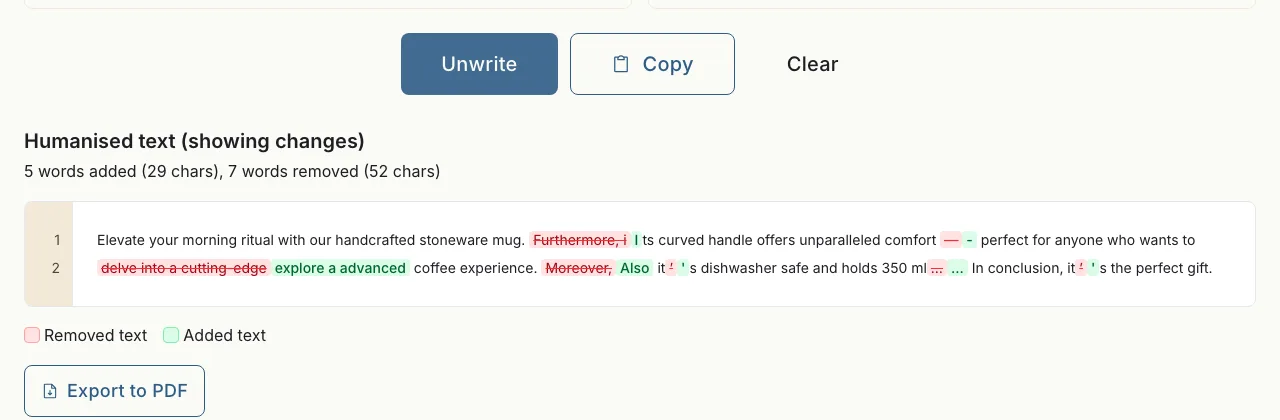
Look closely and you'll see why the last step matters: "delve into a cutting-edge" became "explore a advanced". A phrase swap doesn't know the article in front of it, so read the result before you paste it anywhere.
Step 5: Copy and Use
Click Copy to grab the result, or Export to PDF under the diff for a report with the changes marked, which opens in your browser's print dialogue. Clear empties the box for the next one. Then read it through: the rules fix the mechanical tells, and the judgement calls are still yours.
Advanced Features and Settings
Keyboard-Only Mode
Turn on Keyboard-only mode to remove characters not found on a standard US or UK keyboard. Two options under it start on: Keep emojis, and Replace with equivalents, which turns smart quotes into straight ones and long dashes into hyphens rather than deleting them. Useful when text goes into an old system or a form that mangles special characters.
Regional English Preservation
Unwrite GPT respects regional spelling. On Auto-detect it keeps the variant your text is written in, so "colour" stays "colour". Choose a region and it converts to that one, and changing the region runs the cleaner again. One thing to know: after the first run, the region it detected stays selected until you change it, so a second text in a different variant gets converted to the first one's spelling.
Phrase cleanup intensity and character cleaning
The settings sit in four cards: Output Settings, Quick Settings, Character Cleaning and AI Rewrite. In Quick Settings, AI phrase cleanup is on by default, and its Intensity goes from Light through Medium (the default) to Heavy, depending on how hard you want the stock phrasing replaced. Character Cleaning has a switch for the lot and a tick box for each kind - Hidden Unicode, Smart quotes, Em/en dashes, NBSP spaces, Trim spaces, HTML entities, Other symbols and Collapse spaces - all on to start, so you can leave alone anything that matters to your document.
The AI Rewrite Layer
Everything above is rule-based: fast, deterministic, and running on your machine. On top of that sits an optional AI Rewrite layer for the cases where rules aren't enough - a sentence that's grammatically fine but still reads like a model wrote it.
Turn on the switch in the AI Rewrite card and you get two choices to make.
How much to rewrite. These appear once a backend is ready. Smart rewords the sentences that look clearly AI-written and leaves the rest of your text alone. Full rewords every sentence that's worth it. With a local model, sentences under four words, short fragments that don't read as prose and things such as bylines are left as they are in both modes. Smart is the default; Full is for text that's AI all the way down.
Where the model runs. Three backends, and you pick:
- Browser built-in. Some browsers now offer on-device AI to websites, through the Rewriter API or the Prompt API. If yours does, this is selected for you automatically, and the card says so when it doesn't. Nothing downloads from us and the text stays on your device.
- Local model. Download an open model into your browser and run it there. There are four sizes: Light (about 790MB, picked for you on an iPhone, a low-memory device or a browser without WebGPU), Recommended (about 764MB, the default on a desktop with WebGPU), Capable (about 1.1GB) and Best quality (about 3.4GB, for desktops with room to spare). The model stays cached in your browser after the first download, so the next load starts at once; Change model unloads it and Clear cache deletes it. It runs on WebGPU where that's available and falls back to WebAssembly where it isn't. Our guide to models in the browser explains the trade-offs.
- Remote, bring your own key. Point the tool at a model server that speaks the common chat-completions format - one of the cloud presets, a model server on your own machine, or a custom address - and supply your own key where it needs one. This is the one case where your text leaves the browser, which is exactly why it's off unless you turn it on. Some providers block browser requests with CORS; for those there's a tick box labelled "Use Unwrite edge proxy (text briefly passes through our edge)", and it does what it says. One preset needs it and ticks it for you; untick it and the request goes straight from your browser to the provider. Connect your own LLM server covers the setup.
The order matters. Your text goes through the character rules first, then the model, then the phrase cleanup runs as a final pass over whatever the model handed back. A local rewrite works through your text sentence by sentence, so the button counts them off as it goes. And if the rewrite fails for any reason, you still get the rule-based result, with the reason shown in the AI Rewrite card. Local models are small models, so review the output either way. It's a first pass with a good instinct, not a finished draft.
Best Practices for Optimal Results
Start with Quality AI Output
Unwrite GPT works best with well-structured, coherent AI text. If the original is confusing or poorly organised, fix those issues first. The tool humanises language patterns, not logical flow.
Process in Logical Chunks
The box counts up to 50,000 characters, and section by section is easier to review than a whole document at once, especially with AI Rewrite on.
Review and Refine
Always review the output. A phrase swap can land badly next to a technical term, and you might want a word back. Think of it as a first pass, not a hands-off solution.
Combine with Human Editing
For critical content, use Unwrite GPT as your first pass, then add your personal touch. This combination creates content that's both efficient to produce and genuinely engaging to read.
Understanding What Gets Changed
Transparency matters. Here's what the rules change, each with its own switch:
- Characters: hidden Unicode, smart quotes, long dashes, non-breaking spaces, trailing and doubled spaces, HTML entities and other symbols
- Phrases: stock AI transitions and vocabulary, more of them at a higher intensity
- Spelling: to the region in Output language/region
- Keyboard-only mode, when you turn it on: anything not on a standard keyboard
They don't reorder, merge or rewrite your sentences. Only AI Rewrite rewords sentences, and only when you turn it on. Smart quotes become straight quotes, so if your text quotes someone in curly quotes on purpose, untick Smart quotes.
Privacy and Security
Your privacy isn't a feature - it's the foundation of Unwrite GPT:
- Browser-based by default: The cleaning rules are JavaScript running in a Web Worker on your device. There's no upload endpoint for your text
- No server communication unless you ask for it: Nothing is uploaded unless you connect a remote AI provider. Browser built-in and local-model rewrites stay on your machine as well
- No tracking: We don't use analytics, cookies, or any tracking mechanisms
- Your text isn't stored: Refresh the page and your text is gone. Two things do stay in your browser: the remote AI settings, including your API key, are kept in this tab's session storage so a refresh doesn't lose them, and a downloaded local model stays cached until you click Clear cache
- Verifiable in the browser: Open the network inspector and watch. The page fetches its own code and assets, and nothing carrying your text
That last point is the honest version of "open source". The transformation rules themselves aren't published, and we've written up why Unwrite isn't open source rather than pretend otherwise: publishing every heuristic hands the playbook to anyone who wants to defeat it. What you can verify without our permission is the part that actually protects you: where your text goes, which by default is nowhere.
Common Use Cases
Content Marketing
Transform AI-drafted blog posts into engaging, authentic content that connects with readers and performs well in search results. Maintain your brand voice whilst leveraging AI efficiency.
Professional Communication
Polish AI-drafted emails, reports, and proposals. Create documents that feel personally crafted, building trust with clients and colleagues.
Creative Writing
Use AI for ideation and first drafts, then humanise to add the subtle variations and imperfections that make stories feel alive and authentic.
Comparing Unwrite GPT to Alternatives
Unlike "humanisation" tools that simply paraphrase or swap synonyms, Unwrite GPT fixes the mechanical tells and shows you the rest. It's not about hiding AI use - it's about better copy. If you're weighing up AI checkers too, why AI checker scores swing and what AI checkers cost are worth reading first, and Unwrite GPT or Unwrite Voice? explains when you want something that writes in your own voice instead.
Many alternatives require account creation, store your text on their servers, or use your content for training their own models. With Unwrite GPT there's no account, and the default path never sends your text anywhere. If you want a remote model, you connect one deliberately with your own key, to a provider you chose. Your content stays yours either way.
Tips for Specific Content Types
Blog Posts
Process introduction and conclusion separately for best results. These sections often contain the most obvious AI patterns. Keep headings short and punchy - AI loves unnecessarily long titles.
Product Descriptions
Focus on removing marketing cliches and buzzwords. AI tends to oversell; humanised text feels more trustworthy and genuine.
Technical Documentation
Turn on keyboard-only mode if the text goes into a system that mangles special characters. Review carefully so the terminology stays precise.
Social Media
AI content often feels too formal for social platforms. After humanisation, consider adding platform-appropriate elements like hashtags or emojis manually.
The Future of Human-AI Collaboration
Unwrite GPT represents a bridge between AI efficiency and human authenticity. As AI tools become more sophisticated, so too must our ability to refine their output. This isn't about deception - it's about creating content that truly serves its audience.
The goal isn't to hide AI use but to overcome its limitations. By removing the robotic patterns that make AI text feel hollow, we can harness AI's capabilities whilst maintaining the warmth, variation, and authenticity that make human communication effective.
Start Humanising Today
Ready to clean up your AI drafts? Visit Unwrite GPT. No sign-up and no tracking: paste, click Unwrite, read it through. For copy you're pasting into a website, cleaning ChatGPT output for your website covers the HTML side.
Remember: the best content combines AI's efficiency with human creativity and nuance. Unwrite GPT helps you achieve that balance, privately and effectively.