Text Comparison Made Simple: A Guide to Our Diff Tool
Discover how to effectively compare documents, track changes, and identify differences with our privacy-first text comparison tool.
Why You Need a Reliable Text Comparison Tool
Ever tried to spot the differences between two versions of a document by reading them side by side? It's like playing the world's most boring game of spot-the-difference - except the stakes are real. Whether you're reviewing contract changes, tracking document revisions, or comparing code versions, missing a small change can have big consequences.
That's where Unwrite's Text Comparison tool comes in. It's a powerful diff checker that instantly highlights every difference between two texts, from single character changes to entire paragraph rewrites. Built with the same privacy-first philosophy as all our tools, it works entirely in your browser - your sensitive documents never leave your device.
What Makes Our Diff Tool Different
Here's what you get:
- Complete Privacy: All processing happens in your browser. Your texts never touch our servers
- No Account Required: Start comparing immediately. No sign-up, no email, no friction
- Instant Results: Browser-based processing means no upload time, no server queues, just instant comparisons
- Clean Interface: Focus on what matters - the differences - without cluttered ads or distracting upsells
- Professional Output: Export-ready results that work for formal documentation and reports
Getting Started: Your First Comparison
Step 1: Open the Tool
Navigate to unwrite.co/compare-text. The tool loads instantly, ready to use. No plugins, no downloads, no waiting.
Step 2: Add Your Texts
You'll see two text panels, side by side on a wide screen and one above the other on a phone:
- Original Text: paste your original or "before" text
- Modified Text: paste your modified or "after" text
Paste anything you can copy: plain text, code, Markdown, or text from Word or Google Docs. The panels keep only the plain text of a paste, so bold, links and fonts are dropped and only the words are compared. There's no file picker, so copy the text out of the document first.
Step 3: Let It Compare
There's no Compare button to hunt for. The moment both panels have content, the comparison appears underneath them. Edit either panel and the result updates as you type.
If the two texts together run past 250,000 characters, the tool pauses first and warns you that a comparison that size can make the browser slow down or stop responding for a moment, especially on a phone or an older computer. Click Proceed Anyway or Clear Texts - your call, we just don't want to freeze your tab without asking.
Step 4: Review the Results
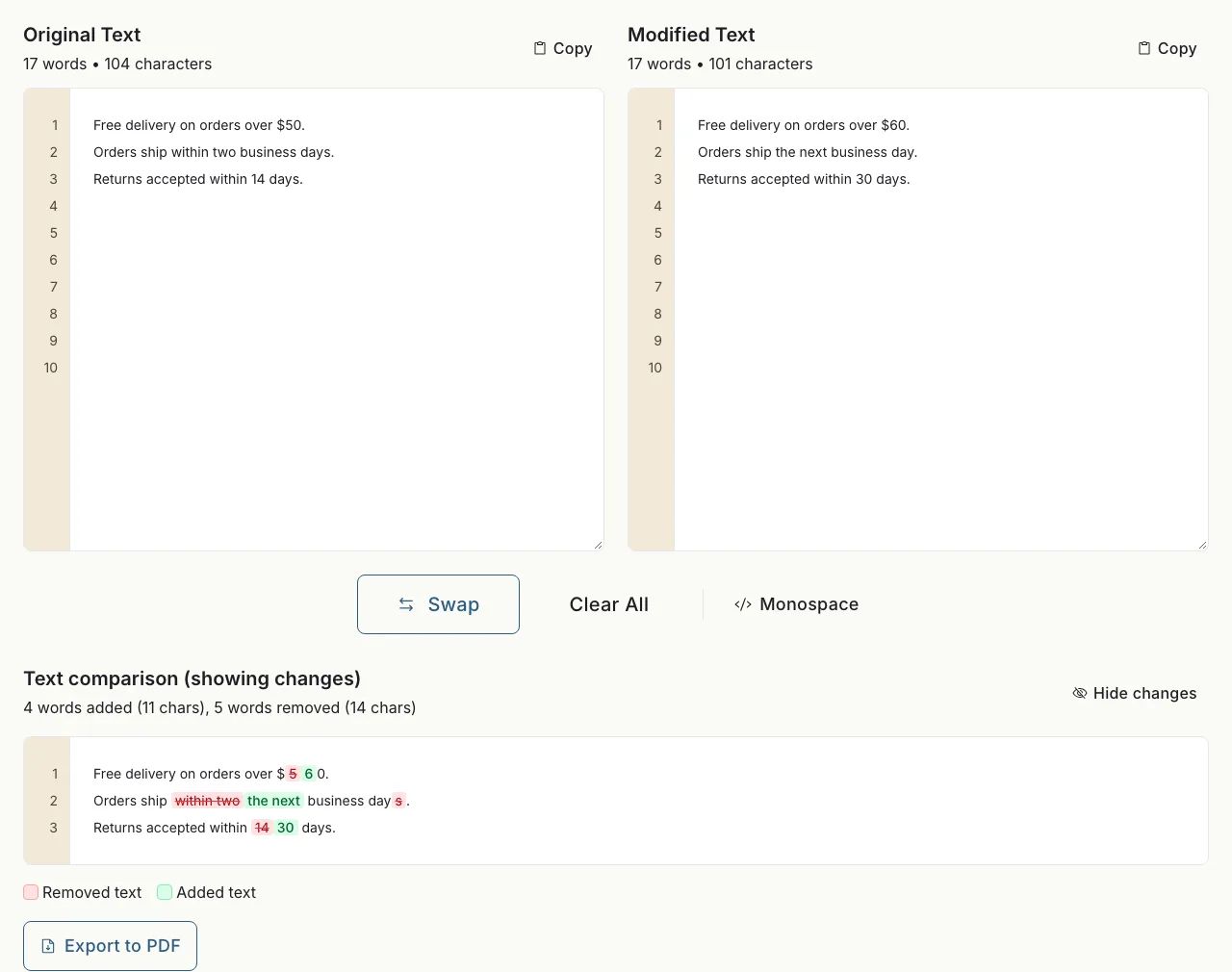
The comparison view uses intuitive colour coding:
- Red strikethrough: Text that was removed from the original
- Green highlights: Text that was added in the new version
- Unchanged text: Appears normally, providing context for the changes
Understanding the Comparison View
The Two Input Panels
Your original and modified texts sit side by side while you work, each with its own line numbers. Once a panel has text, it shows a live word and character count and a Copy button. The panels scroll together, so the same part of both versions stays in view.
The Inline Diff
The comparison itself is a single inline view under the panels: deletions in red strikethrough, additions in green, everything else as plain context. A "Hide changes" toggle switches it to the clean modified text with the deletions dropped, which is handy when you want to read the result rather than audit it. A legend under the view labels the two colours.
The Change Summary
Above the diff, a one-line summary gives you the scale of the change: words added (with the character count), and words removed (with the character count). Word counts only include tokens with a letter or a digit in them, so swapping a smart quote for a straight one doesn't inflate the numbers.
Real-World Use Cases
Legal Document Review
When reviewing contract revisions or legal amendments, every word matters. Our tool helps legal professionals quickly identify all changes between document versions, ensuring nothing slips through the cracks. The privacy-first approach means sensitive contracts stay secure.
Content Editing and Revision
Writers and editors use our tool to track changes between drafts. See exactly what your editor changed, or show clients precisely what improvements you've made to their content. The clear visual diff makes revision discussions more productive.
Code Review and Debugging
While not a full Git replacement, our tool excels at quick code comparisons. Debug by comparing working and broken versions, review code changes before meetings, or help students understand what changed between examples.
Academic Integrity
Educators use our tool to compare student submissions, checking for unauthorised collaboration or tracking how drafts evolved. The browser-based processing ensures student work remains confidential.
The Controls You Actually Get
Monospace
Switch both panels and the diff to a monospace font. Worth turning on for code, CSV rows, or anything where column alignment carries meaning.
Swap
Flips the two panels. Useful when you've pasted the versions the wrong way round and the diff is reading backwards.
Clear All
Empties both panels and resets the large-text warning in one click.
Line numbers
Always on in both input panels, counting the line breaks in your text, so "line 214 of the original" means the same thing to everyone. They sit beside the right lines when lines are short, as in code or CSV rows; a long paragraph that wraps over several screen lines still counts as one. The diff has numbers too on a wider screen, but those count the lines as they wrap on your screen, so use the panels' numbers when you share a reference.
Saving or sharing results
Click "Export to PDF" under the diff. The tool builds a formatted report in your browser - highlighting intact, line numbers down the side, the added/removed summary at the top - opens it in a new tab and hands it to your browser's print dialogue, where you choose "Save as PDF". The report always shows the changes, even if you've hidden them on the page. (If no tab appears, check your popup blocker.) Copying the text out of either panel works too. We don't store comparisons, so if a diff matters, export or copy it before you close the tab.
Privacy and Security Deep Dive
Your documents often contain sensitive information - financial data, personal details, proprietary content. That's why we built our comparison tool with uncompromising privacy:
How Browser-Based Processing Works
When you paste text into our tool, it stays in your browser's memory. The comparison algorithm runs entirely in JavaScript on your device. This isn't just a privacy feature - it's faster too, eliminating upload/download time.
What We Can't See
- The text you're comparing
- What types of documents you compare
- Any results or exports you create
- Who you are: there's no account and no cookie
Like any website, our host counts page requests at the network level. Our privacy policy says exactly what that covers.
Verification
Don't trust, verify. Open your browser's network inspector and paste both versions in. You'll see the page fetch its own code and assets, exactly as any website does, and nothing carrying your text. There's no upload endpoint for your content, so there's nothing for a request to carry it to. Does this tool upload my files? walks through that check step by step.
Tips for Effective Comparisons
Prepare Your Texts
The tool compares plain text, so fonts and bold never show up as changes. Line breaks do. Text copied out of a PDF often breaks at the end of every printed line, while the same text from Word breaks only at paragraphs, so the diff fills with changes that aren't real. Join the PDF's lines into paragraphs first, or compare two copies from the same kind of source. There's no "ignore whitespace" or "ignore case" switch, so a changed capital or a double space counts as a change.
Use the Toggle
Leave "Show changes" on while you're auditing, then hide the changes when you want to read the modified text as a reader would see it. Two passes over the same comparison, and you catch different things in each.
Work in Sections
For very long documents, consider comparing section by section. This makes changes easier to review and discuss, especially when collaborating with others.
Save Important Comparisons
Since we don't store anything, remember to export important comparisons. The PDF report preserves the highlighting and opens anywhere, without our tool and without a browser.
Common Comparison Scenarios
Version Control Without Git
Not everyone uses Git, but everyone needs version tracking. Our tool provides a simple way to compare file versions without command-line complexity. A practical option for non-technical users who need professional comparison capabilities.
Email Thread Analysis
Copy long email threads into our tool to see how responses evolved. Identify what was quoted, what was changed, and what was added. Invaluable for understanding complex negotiations or discussions.
Website Content Updates
Compare old and new website copy to ensure all requested changes were implemented. Particularly useful when working with multiple stakeholders or reviewing work from contractors.
Policy and Procedure Updates
When company policies change, stakeholders need to understand exactly what's different. Our tool makes it easy to create clear change summaries that highlight every modification.
Where Your Text Goes
Whichever diff tool you use, it's worth knowing where your text goes. With ours the answer is short: the comparison runs on your device, there's no account, and the network check above lets you confirm it yourself. It's the tool we wanted for our own copy reviews, so we built it.
Integration with Other Unwrite Tools
Our Text Comparison tool works well alongside the other Unwrite tools:
- Paste a product description before and after Unwrite GPT to see every word it changed. Unwrite GPT shows its own diff too, but here you can compare against an older version you saved.
- Clean a Shopify description's HTML with the HTML tools, then compare the plain text of the old and new versions so the tags don't hide the real edits. Cleaning up product descriptions at scale and cleaning HTML pasted from Word and Google Docs show where those messy versions come from.
- Use it as a word counter: our post on what AI checkers cost used it to count 777 words in a batch of descriptions before pricing the checks.
Start Comparing with Confidence
Ready to compare documents without compromising privacy? Visit our Text Comparison tool and experience the difference. No sign-ups, no uploads, no tracking - just powerful, private text comparison that works instantly in your browser.
Whether you're reviewing contracts, tracking document changes, or comparing any texts, our tool provides the professional features you need with the privacy you deserve. Because your documents should remain yours.