The Rise of Privacy-First Web Tools: Why Browser-Based is Better
Why browser-based tools win on privacy, speed, and trust: your files stay on your device, and you can check that for yourself.
You shouldn't have to upload private files to compress a PDF, clean an image, or check copy. If a tool needs your data to leave your device for basic processing, pick another tool. Browser-based is cleaner, faster, and safer.
Updated 19 November 2026: we re-checked every claim in this post against our own tools, measured the speed and offline claims instead of asserting them, and added the cases where something does leave the page.
The old way (and its cost)
- 1You upload a file
- 2A server processes it
- 3You download a result
- 4Your data lingers on someone else's machine
That creates avoidable risk:
- Privacy: third parties can store or inspect your data
- Security: more places for breaches and leaks
- Latency: uploads and downloads for simple tasks
- Compliance: unclear retention and jurisdiction
- Trust: users hesitate when "upload" appears
The browser-based model
Modern browsers can handle real work locally, with no server touching your files.
- 1Load the tool (the code downloads and runs in your browser)
- 2Choose your file (the page reads it from your disk)
- 3Process locally (on your own processor)
- 4Save the result (your browser writes it straight to your downloads)
Keep sensitive work on your machine. Move results, not raw data.
Why this is better
Privacy by default
There's nothing for a server to keep, because the file never reaches one. No backend copies, no retention policy to read, no inbox full of "your export is ready" links.
A few tools do keep things on your own device, because that's what you'd want: the audio mixer saves your project in the browser's storage so it's there when you come back, the signing tool keeps a signature only when you tick "Save to this browser for next time", and saved connections to your own model server are kept without their API keys. All of it lives in your browser's site data, and clearing that clears it.
Fewer attack surfaces
No upload, no database, no bucket permissions to misconfigure. Your device does the work.
No upload wait
Skip the network and the only wait is the work itself. We put twelve public-domain museum photographs from The Met's open access collection into one 12-page, 18 MB PDF and ran it through our PDF Editor in Chromium on a laptop with an Apple M5 chip. Quick Compress finished in about 5 seconds, but it only saved a couple of kilobytes, because those photos were already well-compressed JPEGs. The Aggressive setting scales the photos down as well (a 3,000 by 4,000 pixel image came out at 1,440 by 1,920). It took about 20 seconds and brought the file down from 17.9 MB to 3.8 MB. Nothing was uploaded either time, so that's the whole wait.
Easier to explain (and audit)
Client-side processing is straightforward to document for legal, procurement and security teams, and it's something you can check rather than take on trust. Open your browser's developer tools, go to the Network panel (Chrome's guide walks through it), clear it, then use the tool. Every request the page makes is listed. Our post on checking whether a tool uploads your files goes step by step.
When something does leave the page
When a free tool does the work itself, the files you open and the text you paste stay in the tab. A handful of features do reach the network, because reaching it is the job you asked for (checking a live page, talking to your own model server). We'd rather show them than bury them. These are the main ones, and our privacy page is the full record of what each sends:
- In-browser AI models download the model you pick the first time you start it. Your text stays in the tab (LLM in the browser).
- Your own model server or API key, if you connect one, gets the prompts you send it. That's the point of connecting it (connect your own LLM server). Some providers refuse requests that come straight from a browser, so you can switch on our edge proxy: your prompt and API key then pass through our edge on their way to that provider, and we don't log either. A direct connection is better when the provider allows it.
- Link safety checks download compact block lists and check the link on your device.
- The social share preview shows each page's share image and icon by loading them straight from the site you're checking. In URL mode it sends the address you type to our relay so it can fetch that page's tags, and the share image's address so it can check the image's file size. Pasted HTML stays in the browser, but the image addresses inside it are loaded like any image, and exporting a PNG sends those addresses through our image relay.
- Signing on your phone sends an encrypted signature between your devices, with the key kept in the link itself. The document stays on your computer.
The privacy page covers each of these with what's sent and why, and our security page has the technical detail.
What makes it possible
- WebAssembly: near-native speed for heavy jobs like PDF compression and image encoding (more on that)
- Web Workers: heavy work on a background thread, so the page doesn't freeze
- Canvas: fast image operations
- File API: read the file you choose without sending it anywhere
- IndexedDB: local storage for larger things, like an audio project
- Service workers: keep the site's own files on your device so the tools still open without a connection
Good fits for in-browser tools
- PDFs: compress, merge, split, reorder pages, sign (sign a PDF without uploading it)
- Images: resize, convert, strip metadata (compress images without uploading)
- Text: compare drafts, tidy punctuation, spot patterns
- Archives: open a ZIP or RAR and take out the one file you need (open RAR files in your browser)
- Conversions: common formats without "email me when done" queues
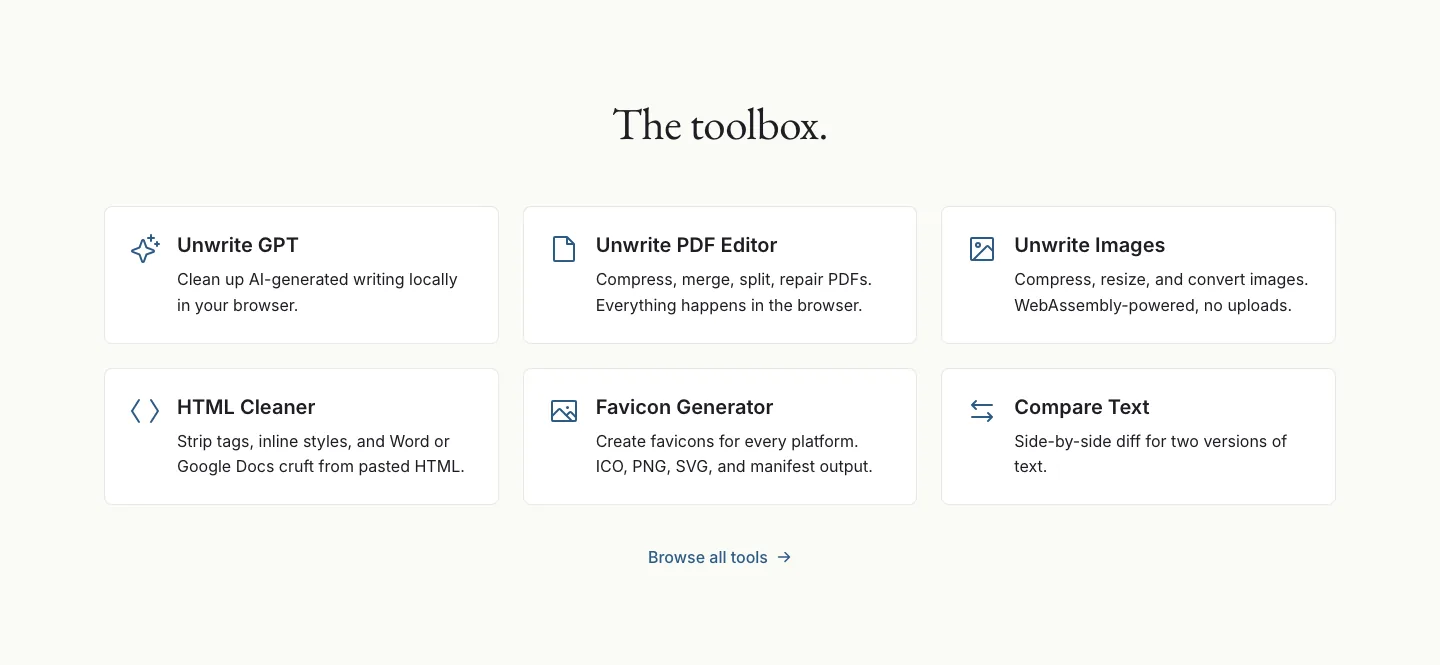
That's roughly the shape of our own toolbox. Each of the six tools on the home page does its main job in the tab you opened it in, and the full list has more.
A quick buyer's checklist
- 1Does the tool say "processed locally in your browser"?
- 2Is there a clear "no upload, no storage" statement, and does the privacy page list the exceptions?
- 3Does it work offline once loaded? We checked ours: we opened the PDF Editor on unwrite.co, compressed the same photo PDF, switched the network off, reloaded the page and compressed it again. It worked, in about 4 seconds.
- 4Does the Network panel stay quiet while it works?
- 5Is there a simple privacy page you could send to a client?
Bottom line
If your workflow involves private files, use tools that keep them on your device, and check that they do. Browser-based processing cuts risk, saves time, and builds trust. That's the upgrade.