How to Add a Favicon to Your Shopify Store
A step-by-step guide to adding a favicon to your Shopify store, checked against Shopify's own themes: what the theme editor really outputs, why a square image matters, and the few lines of theme code that add a Home Screen icon.
Why Your Shopify Store Needs a Favicon
In a crowded digital marketplace, every detail matters. A favicon, that tiny icon in browser tabs, history and bookmarks, might seem insignificant, but it's a real branding tool. When customers have multiple tabs open (and let's face it, they always do), your favicon helps them spot your store at a glance.
Think of it as your shopfront sign, visible even when customers aren't looking at your site. Google Search can show it next to your shop in results too. A store with no favicon looks unfinished next to competitors that have one.
Before You Begin: What Shopify Does With Your Image
Getting this right the first time saves frustration later. Shopify's help page is short on the subject: "The recommended size for a favicon is 32 x 32 px. Larger images might be scaled down to 32 x 32 px."
We read the theme code to see what that means in practice. Shopify's two free flagship themes, Dawn (16.2.0) and Horizon (4.5.0), print exactly one icon tag from the favicon setting, and it asks Shopify's image service for a 32 x 32 copy:
<link rel="icon" type="image/png" href="{{ settings.favicon | image_url: width: 32, height: 32 }}">Shopify's own demo stores for both themes serve the same single tag today, with no Apple touch icon and no web app manifest. So:
- Size: anything from 32 x 32 px up. Shopify makes the 32 px copy for you.
- Shape: square. When the width and height asked for don't match your image, Shopify's
image_urlfilter crops, and the default crop is the centre. A wide logo loses both ends. - Format: PNG is the safe choice. It keeps a transparent background.
- Design: simple, bold and recognisable at 32 px.
- Background: check it on both light and dark browser tabs.
Step-by-Step Guide: Adding Your Favicon
These are Shopify's current steps, checked on 25 November 2026.
Step 1: Open Online Store
From your Shopify admin, go to Online Store.
Step 2: Edit your theme
Find the theme you want to add a favicon for and click Edit theme. This opens the theme editor.
Step 3: Open Theme settings
Click the Theme settings icon.
Step 4: Find the favicon setting
Depending on your theme, click Logo (Dawn) or Logo and favicon (Horizon). Themes from other developers can name the section differently.
Step 5: Upload your favicon
In the Favicon image section, click Select image. Pick an image you've already uploaded, or click Add images to upload one from your computer, then tick it and click Done.
Step 6: Save
Click Save. Your favicon is live.
Troubleshooting Common Issues
Favicon Not Showing Up?
Check in a private window first, then look at the page source: search for rel="icon" and open the address it points to. If the tag is there and the image loads, the job is done.
Google Search is slower. Google recrawls your home page on its own schedule, which "can take anywhere from several days to several weeks", and you can ask for a recrawl with the URL Inspection tool in Search Console.
Favicon Looks Cut Off?
Your image isn't square. The theme asks for a 32 x 32 crop from the centre, so a wide logo shows only its middle. Make a square version first, with your mark centred and some space around it.
Favicon Looks Blurry?
At 32 px there is no room for detail. Fine lines and small text turn to mush. Use your logo's mark rather than the full wordmark, and check it at 32 px before you upload.
Can't Find Favicon Settings?
Paid themes put it in different places. Try:
- Theme settings > Logo
- Theme settings > Brand
- Theme settings > Header
If you still can't find it, ask the theme's developer: where the setting lives is up to the theme.
Design Tips for Effective Favicons
Creating a favicon that works needs different thinking from a full-size logo:
- Simplify ruthlessly: remove text, fine details and complex graphics
- Use bold shapes: strong geometric forms stay recognisable when scaled down
- Maximise contrast: so it reads on light and dark tabs alike
- Test at size: preview it at 16 and 32 pixels
- Consider mobile: when a customer adds your shop to their Home Screen, the phone needs a bigger icon than 32 px (see below)
Our favicon design guide goes further, and theme colours, manifests and browser branding covers the browser-bar side.
Beyond the Basics: Theme Code for Sharper Icons
The theme setting gives you one 32 px icon. Two things it doesn't give you:
- A bigger icon for search results. Google Search accepts a square favicon from 8 x 8 px, but recommends "a favicon that's larger than 48x48px so that it looks good on various surfaces".
- A Home Screen icon. When someone uses Add to Home Screen in Safari on an iPhone or iPad, the phone looks for an
apple-touch-icontag. Apple's guide uses 180 x 180 px for a high-resolution iPhone.
Both take a few lines of theme code. If you're comfortable in Shopify's code editor (the one that looks suspiciously like VS Code), here's how. Duplicate your theme first: Shopify warns that a theme update can remove code changes, so check this block after each update.
Step 1: Upload the icon files
From your Shopify admin, go to Online Store, open your theme's menu and click Edit code. Right-click the assets folder, click Upload..., and add:
favicon-32x32.pngfavicon-48x48.pngfavicon-96x96.pngapple-touch-icon.png(180 x 180)
Step 2: Edit theme.liquid
Open layout/theme.liquid. Near the top of <head> you'll find the theme's favicon block, starting with {%- if settings.favicon != blank -%}. Replace that whole block, down to its {%- endif -%}, with:
<link rel="icon" type="image/png" sizes="32x32" href="{{ 'favicon-32x32.png' | asset_url }}">
<link rel="icon" type="image/png" sizes="48x48" href="{{ 'favicon-48x48.png' | asset_url }}">
<link rel="icon" type="image/png" sizes="96x96" href="{{ 'favicon-96x96.png' | asset_url }}">
<link rel="apple-touch-icon" sizes="180x180" href="{{ 'apple-touch-icon.png' | asset_url }}">
Click Save. asset_url turns each file name into its address on Shopify's CDN.
Step 3: Optional browser bar colour
Dawn and Horizon already print a <meta name="theme-color"> tag, so change that one rather than adding a second. Support is patchy: MDN lists it as not Baseline, because some of the most widely used browsers ignore it.
Step 4: Check it
Open your shop's page source and search for apple-touch-icon. Then, on an iPhone, open your shop in Safari, tap Share, then Add to Home Screen. The icon it offers is your 180 px file.
What about a web app manifest?
Older versions of this guide added one. We've taken it out. Shopify's docs say a .liquid asset file can use only the settings object and Liquid filters, so the usual trick of putting {{ shop.name }} in manifest.webmanifest.liquid has nothing to read. And Chrome's install criteria ask for 192 and 512 px icons in the manifest. A shop doesn't need either for a favicon, and Chrome will put any page on the desktop through Cast, save, and share > Install page as app... without one.
Seasonal Favicon Updates
Consider changing your favicon for holidays or a big sale. It's a subtle sign that the shop is looked after. Keep the address stable if you can: Google asks for a favicon URL that doesn't change often, so swap the image rather than renaming files each time.
Privacy-First Alternative: Generate Your Own
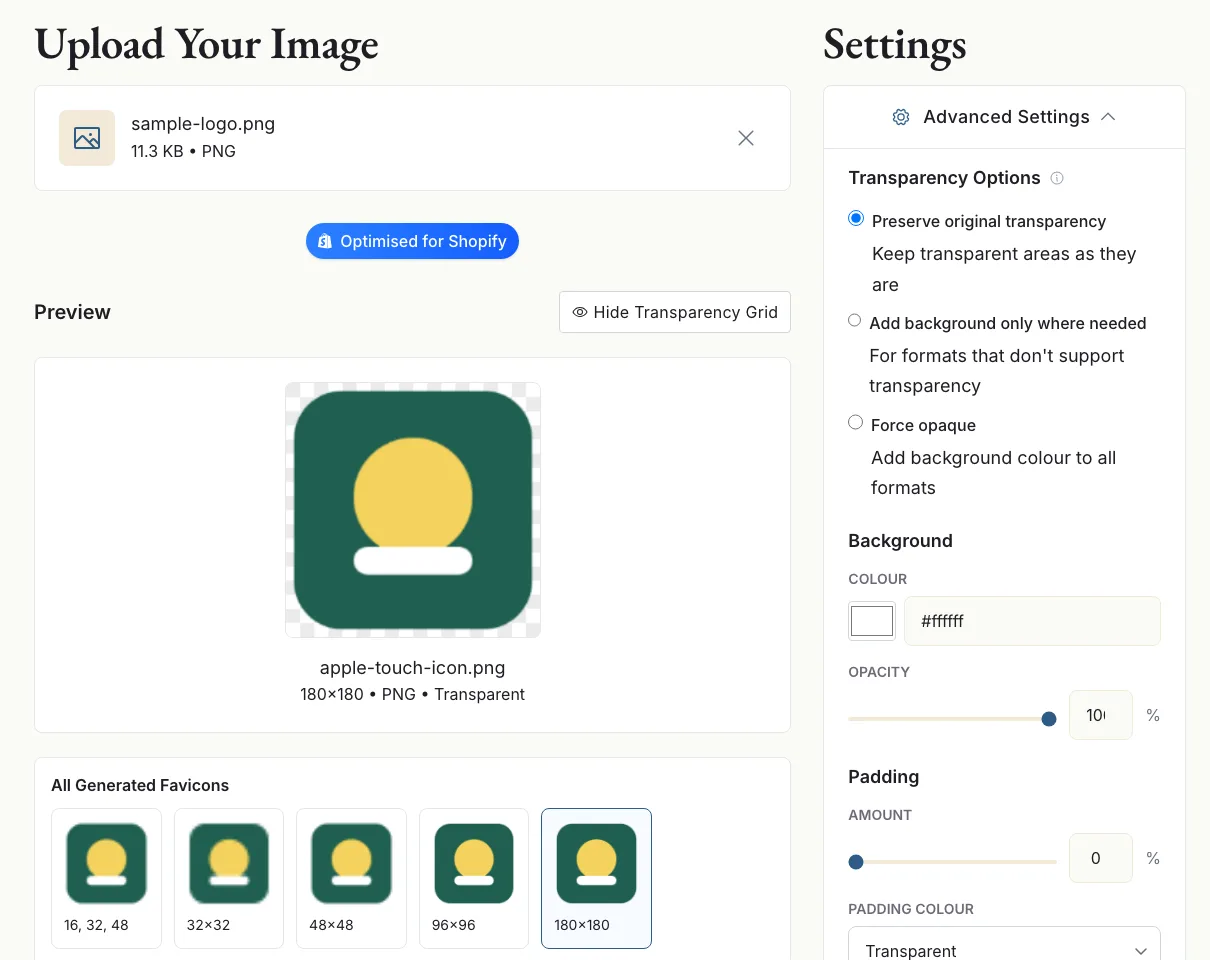
Not keen on uploading your brand assets to an online tool? Try Unwrite's Favicon Generator. The resizing happens in your browser, so your logo never leaves your device. Choose Shopify and it makes the files above: the 32, 48 and 96 px PNGs and a 180 px apple-touch-icon.png, plus a favicon.ico, each one square with your logo fitted inside rather than cropped. (The download also holds a manifest; a Shopify shop can leave it out.) The download includes these same Shopify steps.
If you want to see for yourself that nothing is sent, does this tool upload my files? shows how to check any tool in a couple of minutes.
Final Thoughts
Take two minutes to make a square icon and drop it into your theme settings. If you want the Home Screen icon too, the theme code above is four lines. Use the Favicon Generator for the files, tidy product copy with Unwrite GPT, shrink product photos with Images, and for checkout branding read our Shopify checkout guide, which covers the separate checkout favicon on Plus.
Sources
Read on 25 November 2026.
- Theme settings: Add a favicon, Shopify Help Center
- Editing theme code, Shopify Help Center
- Theme architecture: assets, image_url and asset_url, Shopify developer docs
- Dawn layout/theme.liquid and Horizon layout/theme.liquid, Shopify on GitHub
- Define a favicon to show in search results, Google Search Central
- Configuring web applications, Apple, and Bookmark a website in Safari on iPhone, Apple Support
- theme-color, MDN
- What does it take to be installable?, web.dev, and Use web apps, Google Chrome Help